With any list open, right-click or choose View | Layout to choose your preferred display formats for each column of data.
Layout or Add data?
The Layout tab gives you a chance to format the layout of your data. Add computed data lets you compute cumulative frequencies.
And you can add an extra set column if you like.
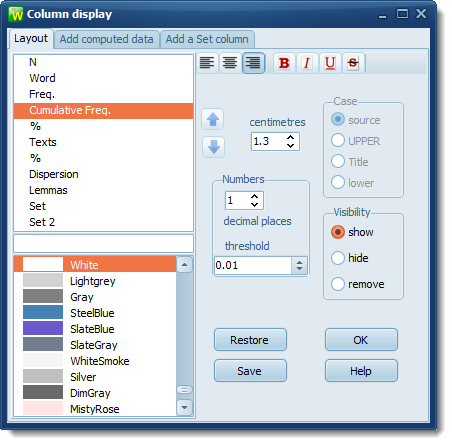
You can edit the headings by double-clicking and typing in your own preferred heading.
Move
Click on the arrows to move a column up or down so as to display it in an alternative order.
Alignment
Allows a choice of left-aligned, centred, right-aligned text in each column, as appropriate.
Typeface
Bold, italic, strikeout and/or underlined text. If none are checked, the typeface will be normal.
Screen Width
in your preferred units (cm. or inches).
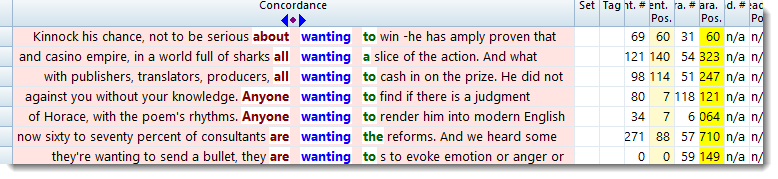
Above, the concordance column shows it is set to 12.7 centimetres in width.
Case
lower case, UPPER CASE, Title Case or source: as it came originally in the text file. The default for most data is upper case.
Decimals
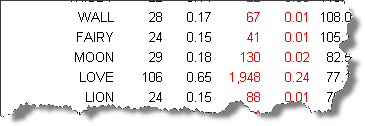
the number of decimal places for numerical data, where applicable. For example, suppose you have this list of the key words in view but want to show the numbers in the percent column above corresponding to POISON, LIPS etc
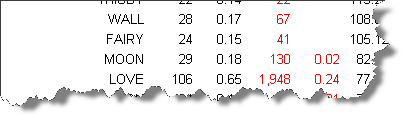
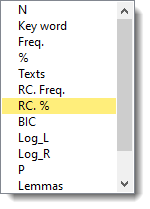
select the column(s) you want to affect,
and set the decimals e.g. like this
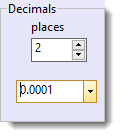
where the top number is the decimal places (2, unchanged from the default for percentage data) and the bottom is the threshold below which the data are not shown. In this case, any date smaller than 0.001 won't be shown (the space will be blank). As soon as you make the change, you should immediately see the result.
Visibility
show or hide, or remove a column.
Colours
The bottom left window shows the available colours for the background. Click on a colour to change the display for the currently selected column(s).
Default settings
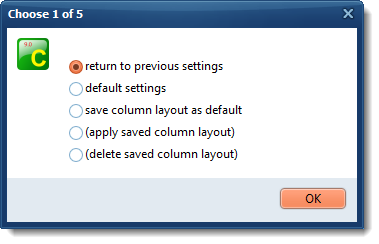
Lets you restores settings to the state they were in before you started (1), or reset them all to default values (2). If you have customised colours, column-widths etc, you could choose (3) to save your layout for this kind of list from now on, (4) to apply a previously saved layout, (5) to delete that layout.
Other Settings
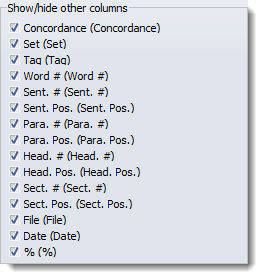
Choose always to show or hide certain columns of data in the Controller's Concord settings -- the What you see tab offers options to show or hide columns and to set the width of a concordance column. In Advanced settings (advanced section) you can define the width of screens for all the major Tools.
which can be saved permanently with this button .
.

See also: percentage_columns, setting & saving defaults, setting colour choices in WordSmith Tools Controller.