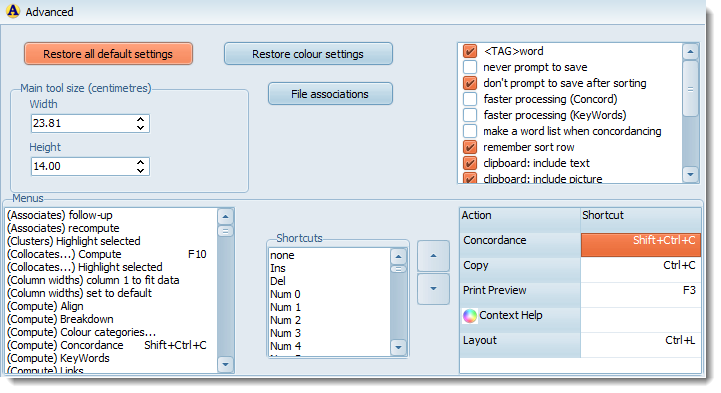
These are reached by clicking the Advanced Settings button visible in the Main Controller

or
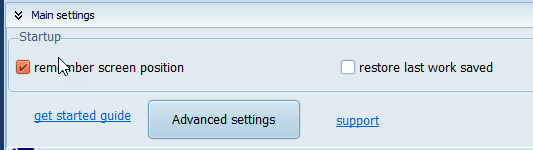
and open up a whole new set of options
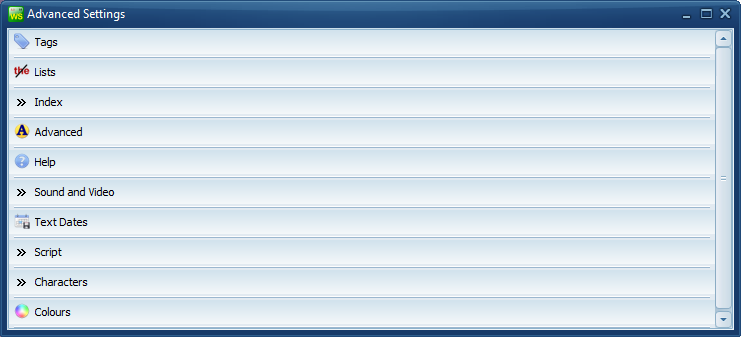
Sound and Video
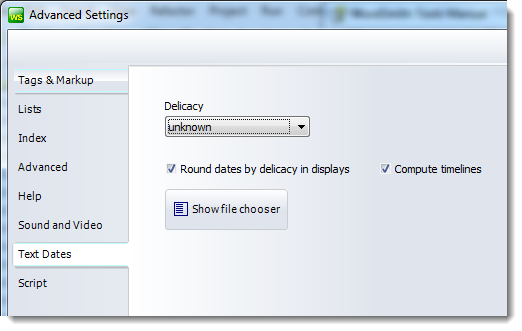
Text dates can be set to varying levels of delicacy, depending on the range of text file dates chosen.
See also: using text dates |
Characters
Colours
 Advanced section (restore defaults, menus, clipboard, case-sensitivity, etc.)
Restore
These buttons let your restore WordSmith to a previous state. Here you may press a button to restore all factory defaults, useful if your settings are giving trouble.
<TAG>word: this option lets you decide the order of tags and words, <TAG>word or word<TAG>. never prompt to save: lets you avoid save reminders. don't prompt to save after sorting: avoids save reminders if all you have done is resort. faster processing: in Concord and KeyWords doesn't compute the extras (collocates, clusters, plots etc.). You can always compute them later with menu choices. make a word list when concordancing: automatically generates a word list of your text(s) ready for collocation relationships. (If you use a saved set of favourite texts it will not make the word list unnecessarily.) return to row after sort: if checked, after any sort, it auto-scrolls to the entry you had previously selected. clipboard: include text clipboard: include picture clipboard: include number column clipboard: include headings autoload stoplist case sensitive processing: this is where you control case-sensitivity in general in WordSmith. handle zip files too use Standard Units for numbers exclude \moved and \filtered folders: skips data in any folder called \moved or \filtered network data file check: checks whether files saved on a network are still present include hidden text files: lets you see and process files the operating system treats as kept hidden.
Main tool size (inches or cm) Determines the default screen size of any Concord, KeyWords, WordList tool.
You can re-assign new shortcuts (such as Alt+F3, Ctrl+O) to the menu items which are used in the various Tools.
And all grids of data have a "popup menu" which appears when you click the right button of your mouse. To customise this, in the main WordSmith Controller program, choose Main Settings | Advanced | Menus. You will see a list of menu options at the left, and can add to (or remove from) the list on the right by selecting one on the left and dragging it to the right. To re-order the choices, press the up or down arrow. Whatever is in your popup menu will also appear in the Toolbar.
To change a shortcut, drag it up to the Customised menu list or the popup menus and toolbars list. |
|