These are found in the main Controller marked Concord. 
This is because some of the choices -- e.g. collocation horizons -- may affect other Tools.
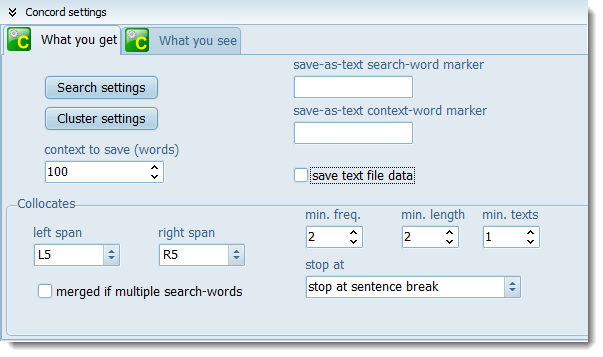
WHAT YOU GET and WHAT YOU SEE
There are 2 tabs for settings affecting What you get in the concordance and What you see in the display. There is a screenshot at Concord: viewing options showing the options under What you see.
 WHAT YOU GET
Cluster Settings
context to save (words)
Here is where you set how many words left and right of the search-term will be stored as text as the concordance is generated. This number of words will be saved when you save your results, so even if you subsequently delete the source text file you can still see some context.
save as text search-word or context-word marker: here you can also specify markers for your search-word and context-word.
save text file data
If this is checked, after the concordance is computed, you get a list with all the text file names and the number of hits in each.
Collocates
By default, Concord will compute collocates as well as the concordance, but you can set it not to if you like (Minimal processing). For further details, see Collocate Horizons or Collocation
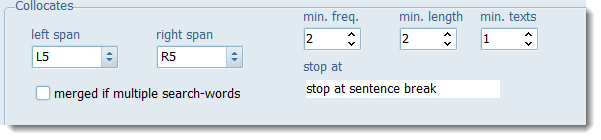
The minimum frequency and length refer to the collocates to be shown in your listing. With the settings above, only collocates which occur at least 5 times and contain at least 1 character will be shown as long as they don't cross sentence boundaries.
If you have multiple search-terms, then you get collocates distinguishing between the different search-terms. But if merged if multiple search-words is checked they will be amalgamated. (You might want that if researching want/wanted/wants for example.)
|
WHAT YOU SEE
The options are explained at Concord: viewing options.
Columns
The Columns to show/hide list offers all the standard columns: you may uncheck ones you normally do not wish to see.
|
See also: Concord Saving and Printing, Concord Help Contents, Collocation Settings.